


If you have selected Cloud VPN service on your order page, a request will be sent to our team to create your Cloud Connexa account.
The Cloud Connexa account will be your-company-name.openvpn.com.
An admin user will be created with your signup email.
You will receive a login email sent to activate your account.
This email contains your temporary login details as shown:
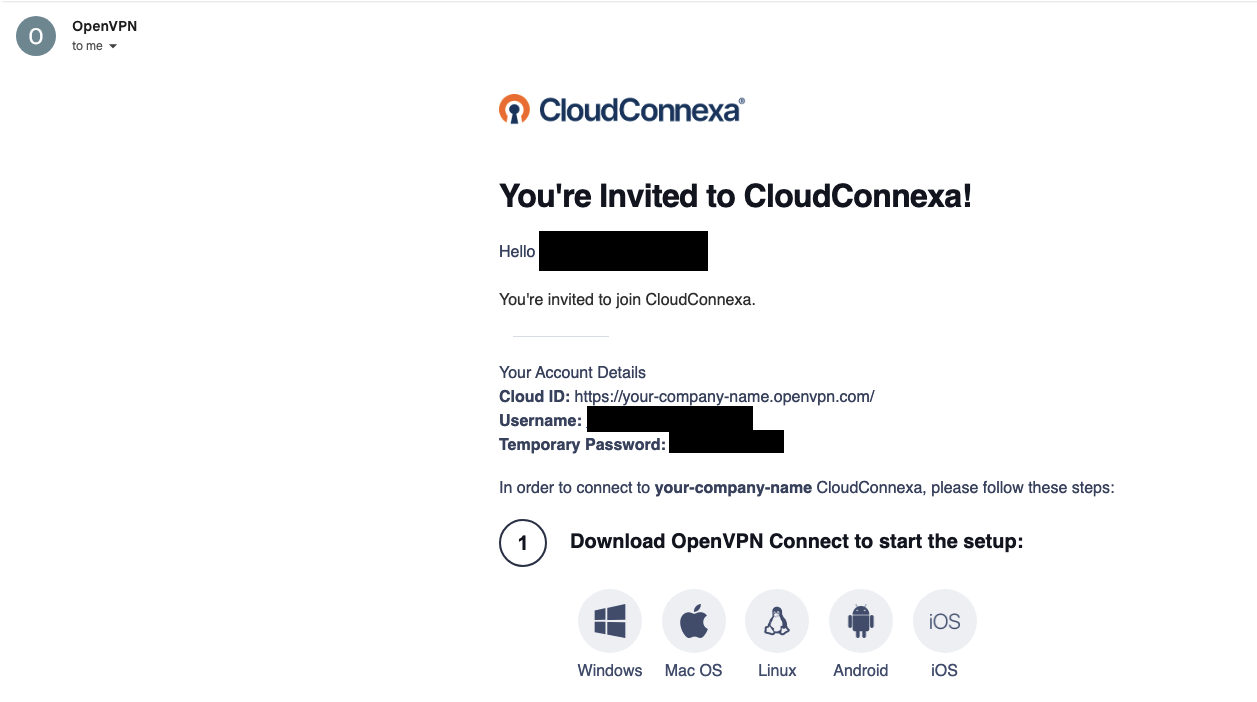
Please follow the instructions in the mail to setup your VPN Agent on your local machine.
Once your agent is installed and connected, please open a web browser and copy your Cloud ID: https://your-company-name.openvpn.com (Your Cloud ID will be different) into the URL and press enter to navigate to the website.
Please login with your username and password as shown in the mail.
Please set a new password as requested when you sign in.
The next step involves installing the Cloud Connexa Connector on the server you wish to connect to.
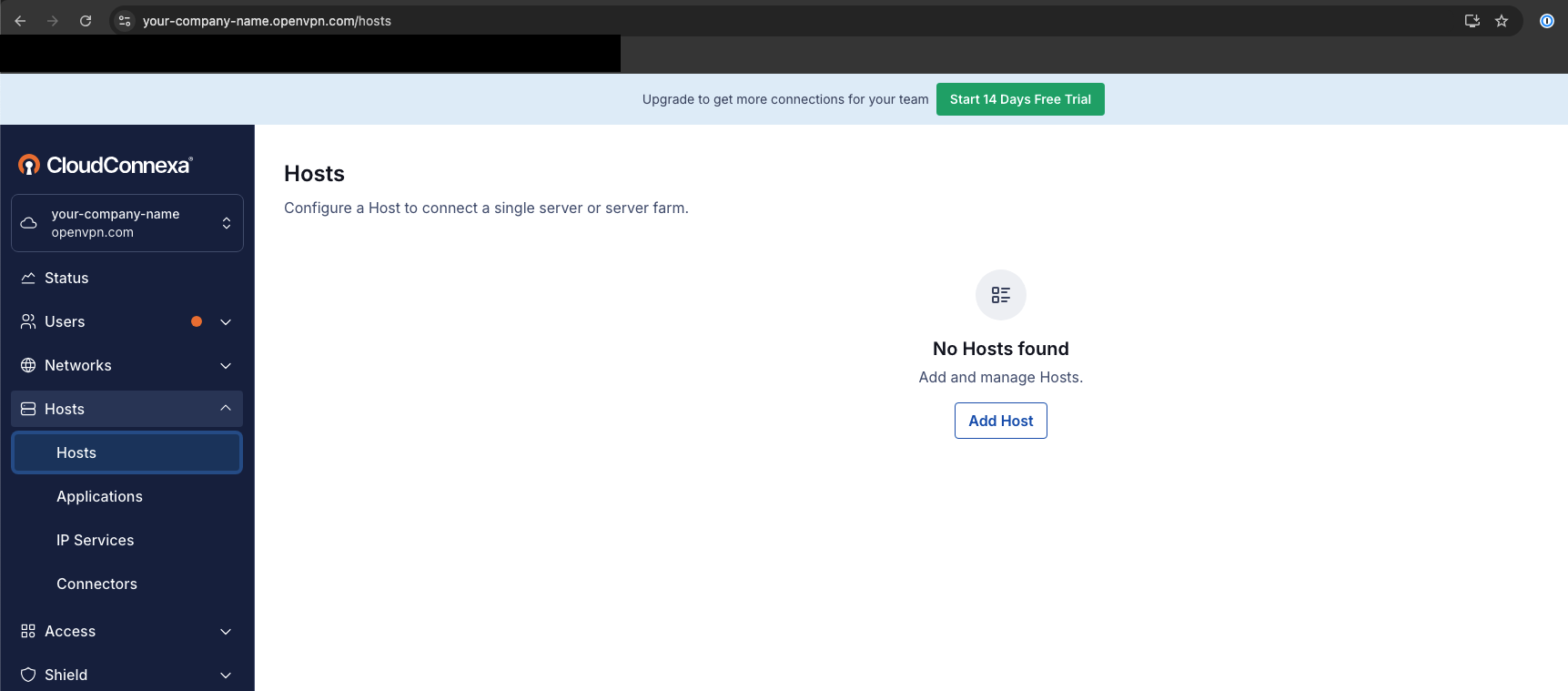
Please navigate to the Host Section and click add new host:
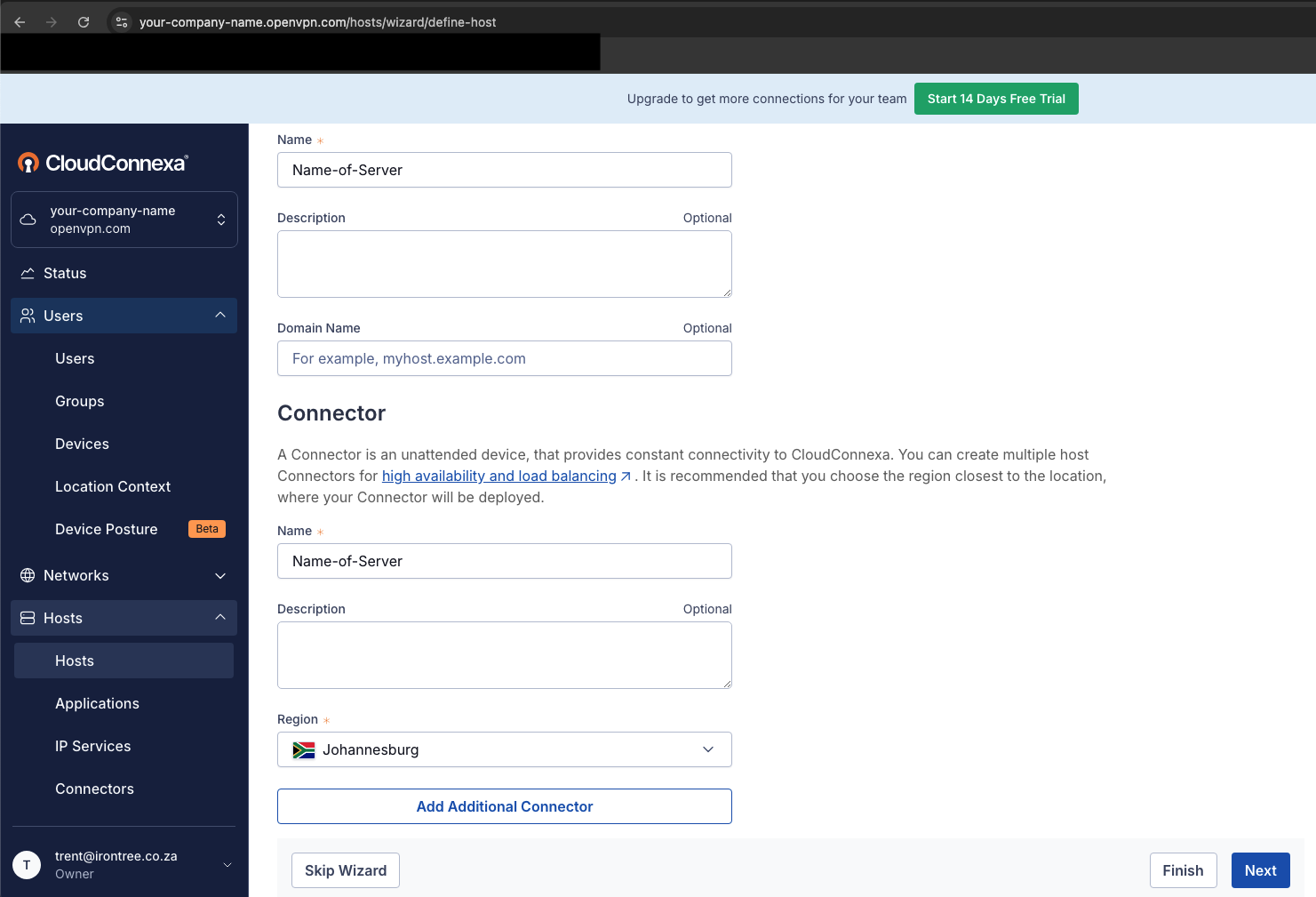
On the next screen, please name your Host and Server and click next:
On the next screen, please select your server's operating system and then download the Installer and Config Files.
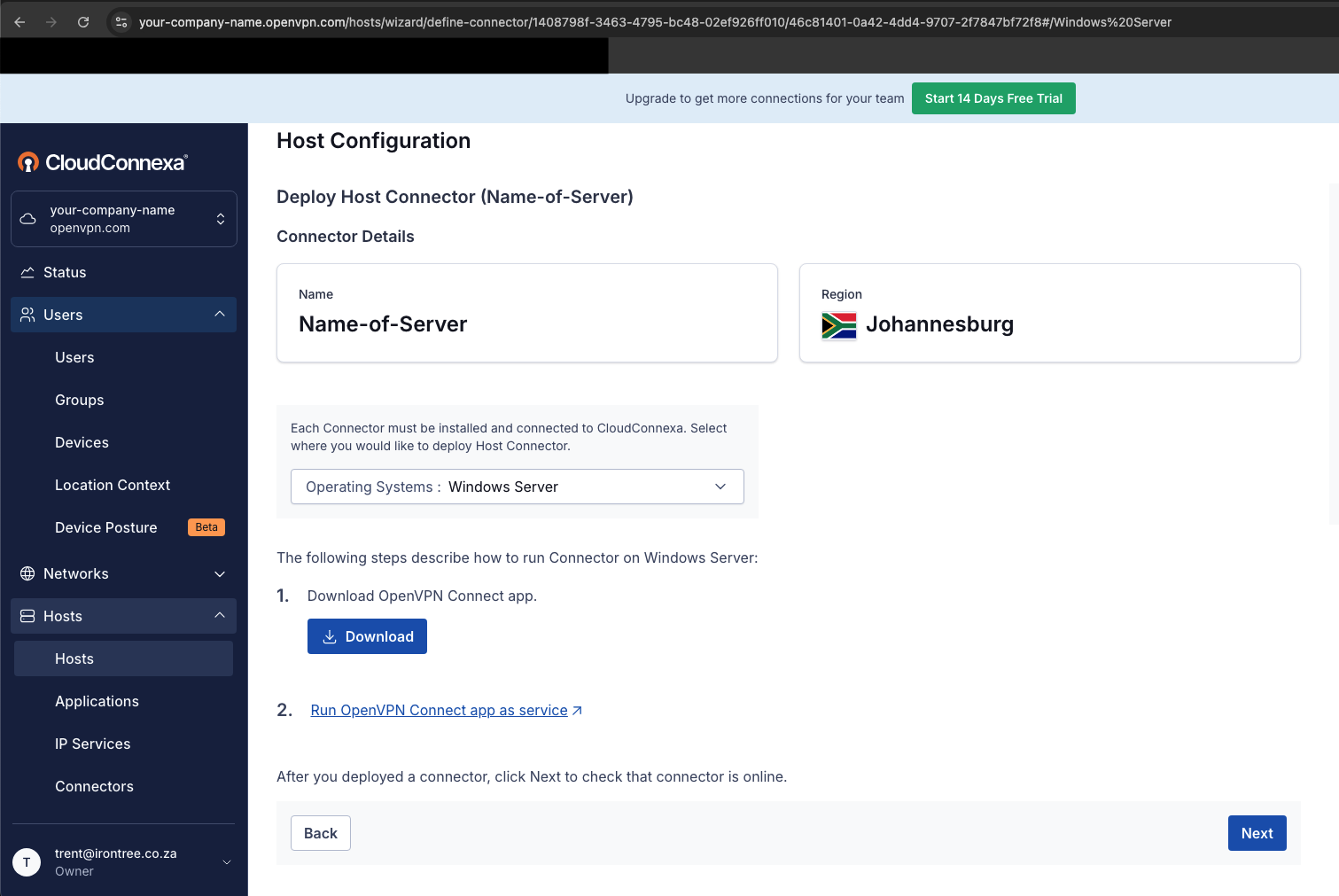
Please upload the *.zip that was downloaded and copy it to your hosted server.
Please then install the .exe file and copy the bundled.ovpn file to a secure location on your C:\Drive, take note of the path i.e C:\OpenVPN Files\.
Once installed please close all open OpenVPN windows that open, then open the task bar at the bottom right of the machine and right click on the OpenVPN app and click exit.
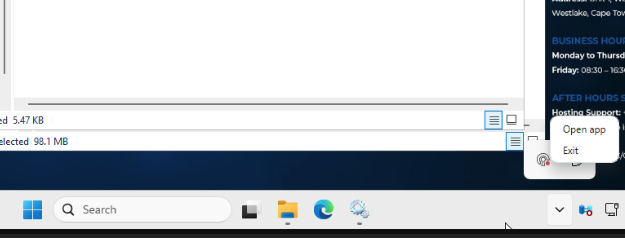
Then go to services and stop the following services:
OpenVPN Agent agent_ovpnconnect
OpenVPN Connect Helper Service
Please then follow the guide below to install the application as a service: (This is critical so that the connector on your server stays online if your system restarts.
Please ensure that the OpenVPN Connect 3.x Connector is started and in a running state and that no OpenVPN app is open on the machine.
The services should look like this:
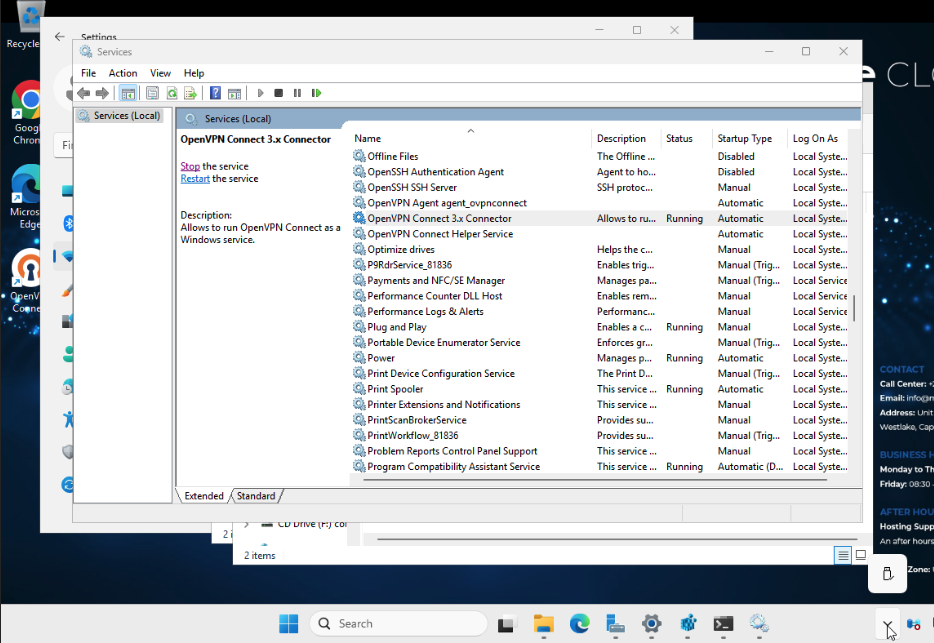
Then please open your Host wizard and click next
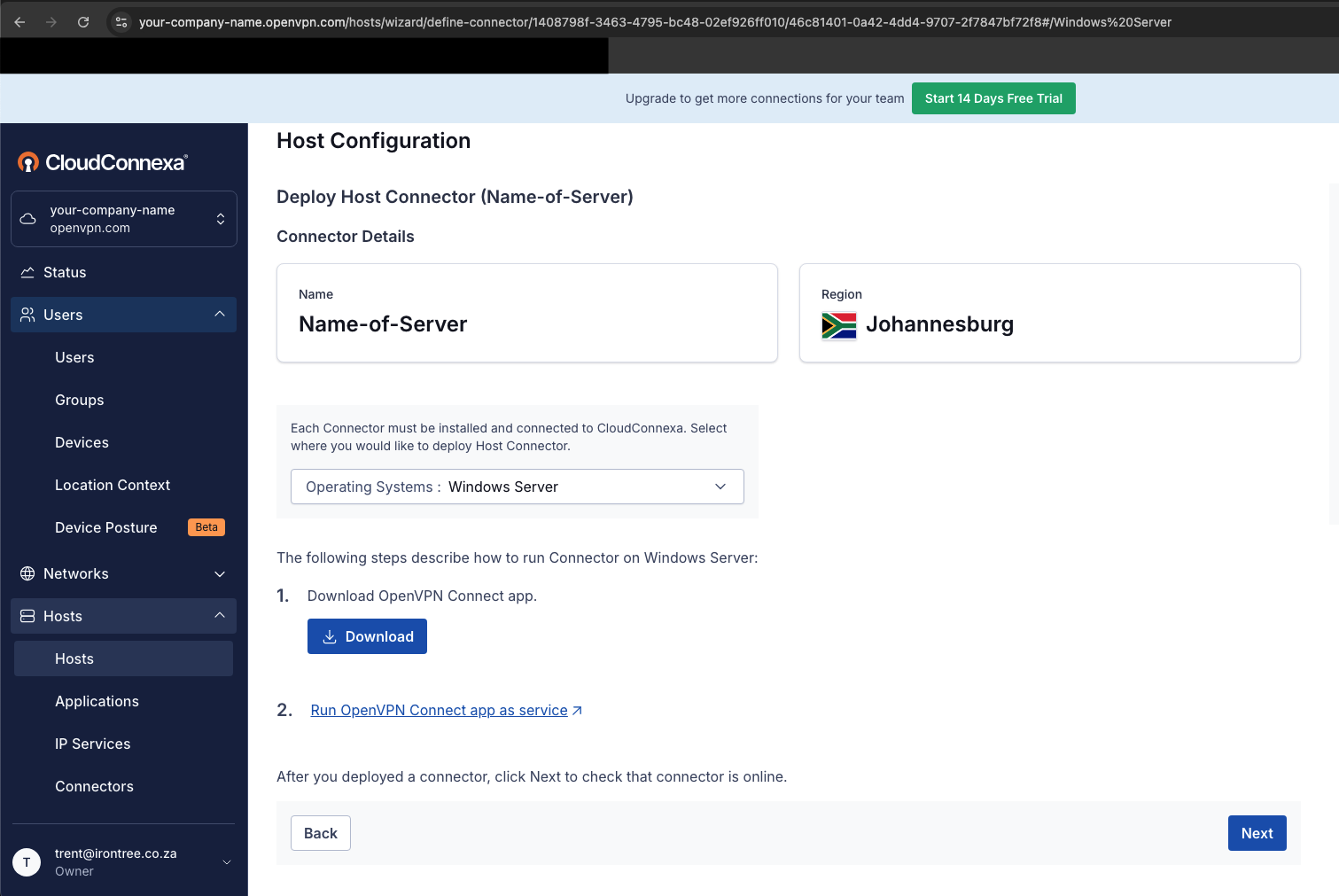
Your connector status needs to say ONLINE:
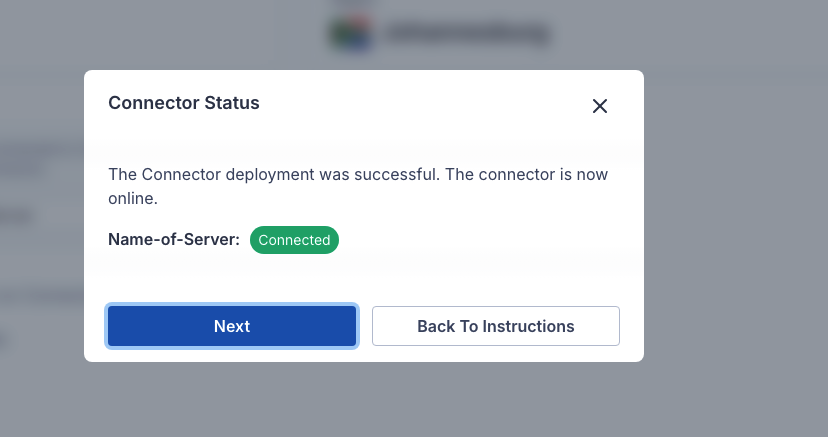
Please click next and refresh your screen.
You will then see your connector Online as shown:
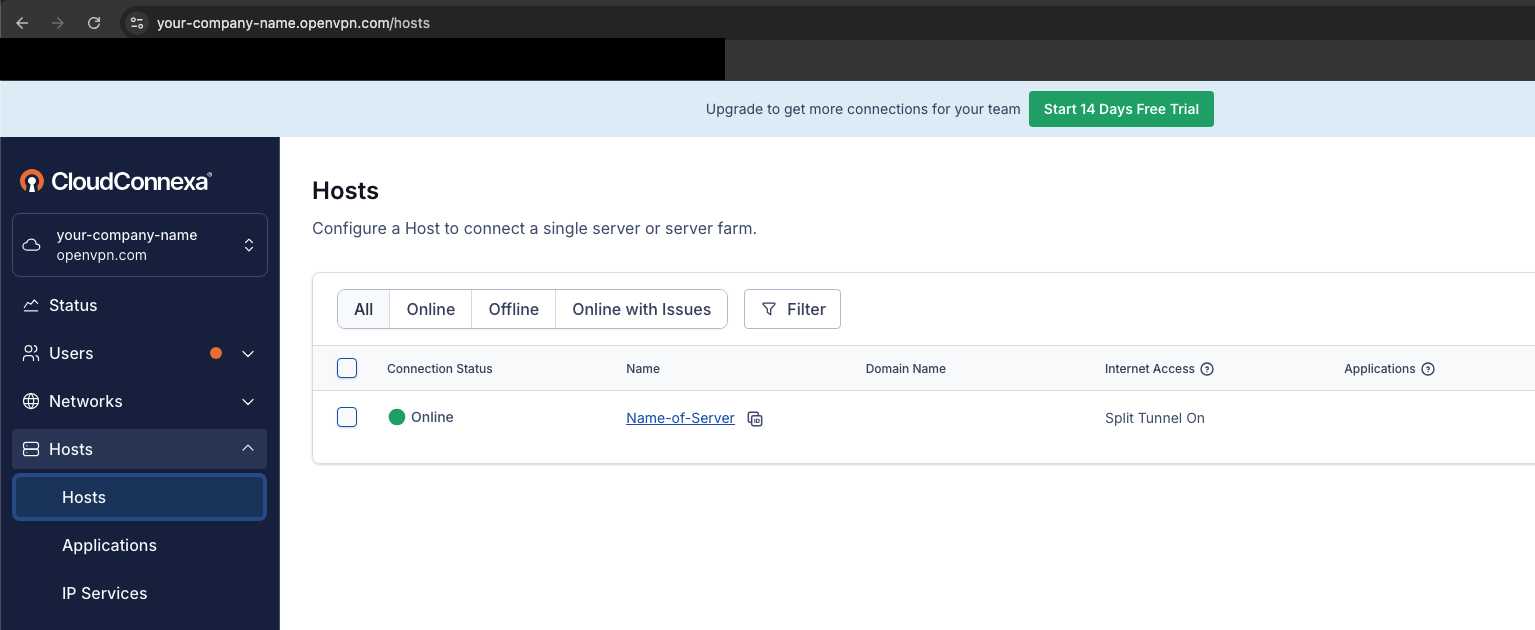
Please click on "Name-of-Server" and then Connector to display your Connector IP:
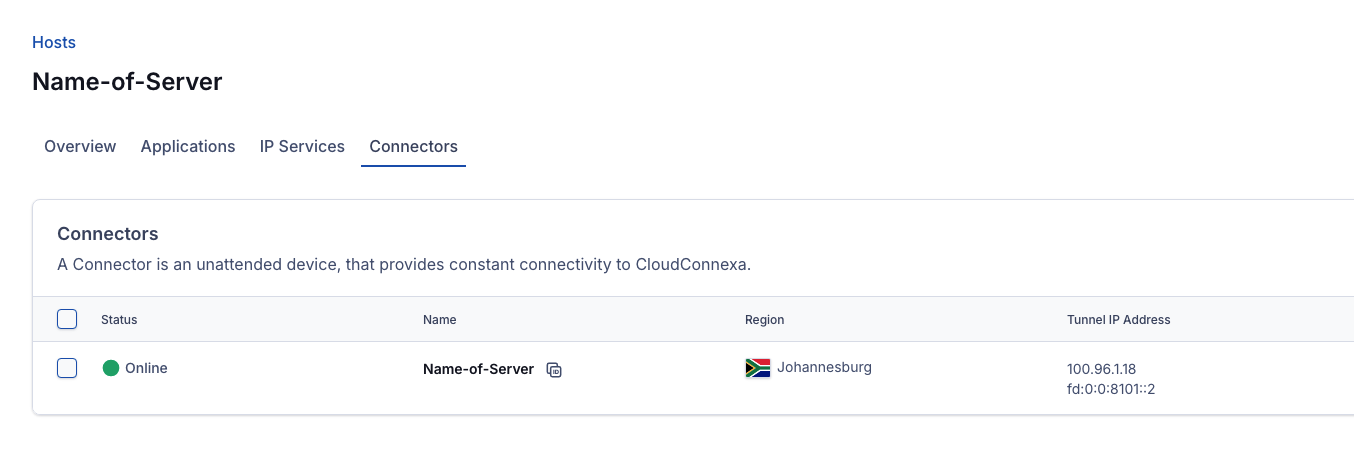
As shown your Server's Connector IP is 100.98.1.18.
You can now access your server using this IP, Congrats!