


This guide walks you through the steps to connect to your server for the first time, whether you're using a Linux or Windows VPS.
Before getting started, make sure you have:
-
Your server's IP address
- You can find your public IP address in the customer area.
- Navigate to Services
- Click on the server name
- Scroll down till you get to "IP Addresses" This is your servers IP address.

- You can find your public IP address in the customer area.
-
The username (typically
rootfor Linux orAdministratorfor Windows) -
The password you received via the welcome email, or the updated password you changed.
-
A suitable remote connection client:
-
SSH client for Linux (e.g., Terminal or PuTTY)
-
Remote Desktop (RDP) client for Windows
-
You can find all of these details in your Welcome Email or by logging into your Client Portal.
- You will need to add certain firewall rules, based on which method you are using to connect to your server. These details are included below.
For Linux VPS (Ubuntu, Rocky Linux, Debian)
You’ll connect via SSH.
On macOS or Linux:
-
Open your Terminal
-
Run the following command:
ssh root@YOUR_SERVER_IP
-
Accept the SSH fingerprint (first-time only)
-
Enter the servers password
On Windows (Using PuTTY):
-
Download PuTTY
-
Launch PuTTY and enter your server IP in the “Host Name” field
-
Click Open
-
Login as
rootand enter your password when prompted
For Windows VPS
You’ll connect using Remote Desktop Protocol (RDP).
On Windows:
-
Press
Win + R, typemstsc, and press Enter -
In the “Computer” field, enter your server IP
-
Click Connect
-
Enter:
-
Username:
Administrator -
Password: **YOUR_PASSWORD***
-
On macOS:
-
Download Windows App from the Mac App Store
-
Add a new desktop with your server’s IP
-
Connect using the same credentials as above
Firewall Rules
For Linux VPS(SSH) and Windows VPS (RDP).
From your client area, navigate to "Services" then click on the server name.
On the left hand side of the control panel, go to "Additional Tools" > "Firewall"
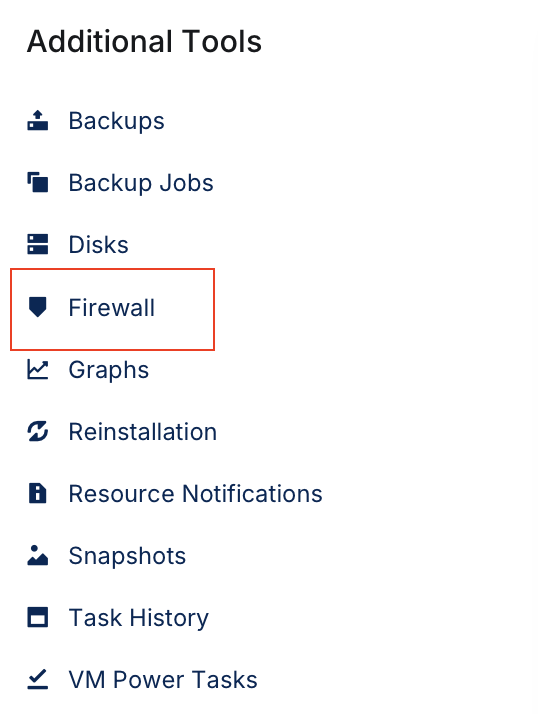
Next, click on "+ Create Firewall Rule"
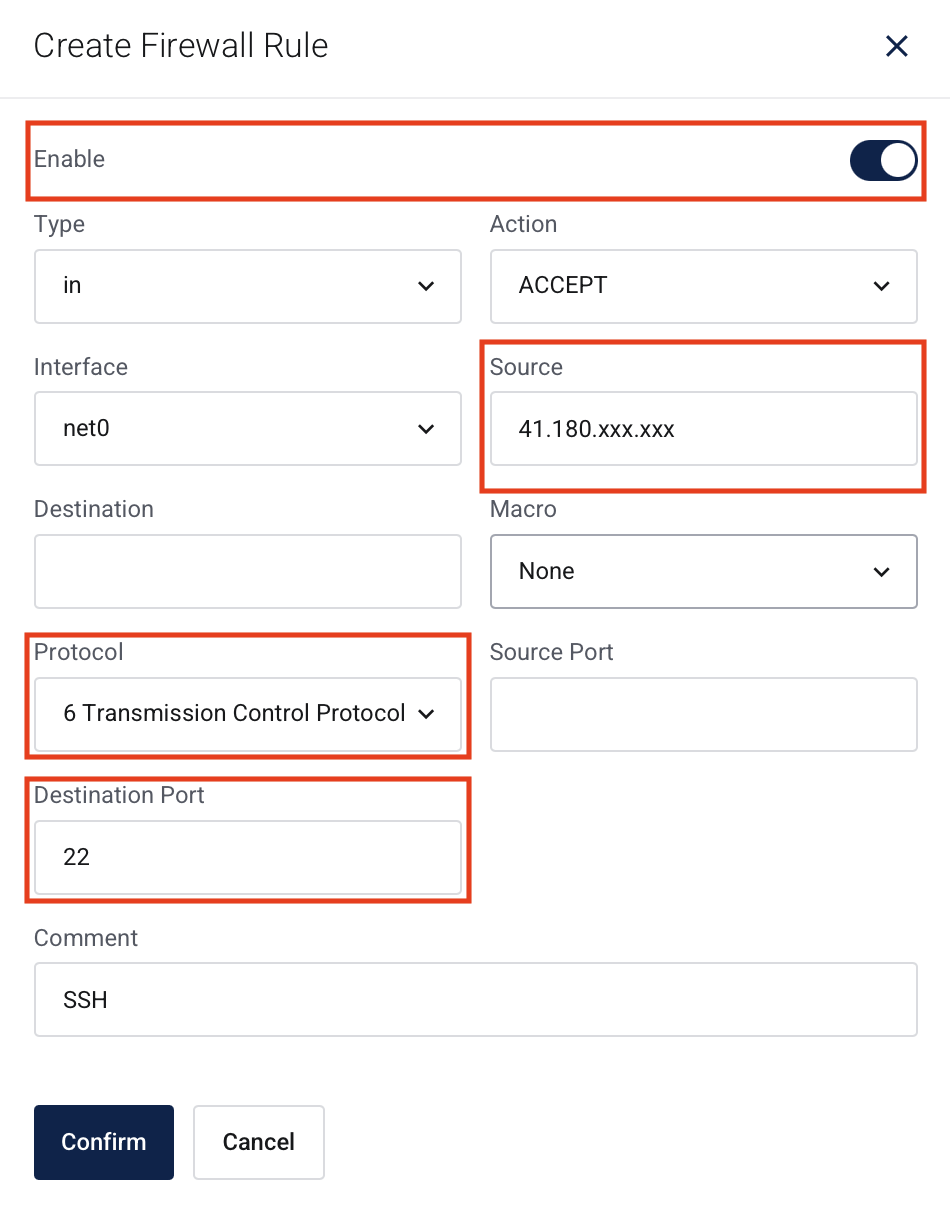
SSH Firewall Rule
- Enable the Firewall by toggling the switch "On"
- Enter your "Source" IP address. This is the public IP address you are establishing the connecting from
- Change the Protocol to "6 Transmission Control Protocol"
- Enter "22" under the Destination Port
- Click "Confirm" to save the rule.
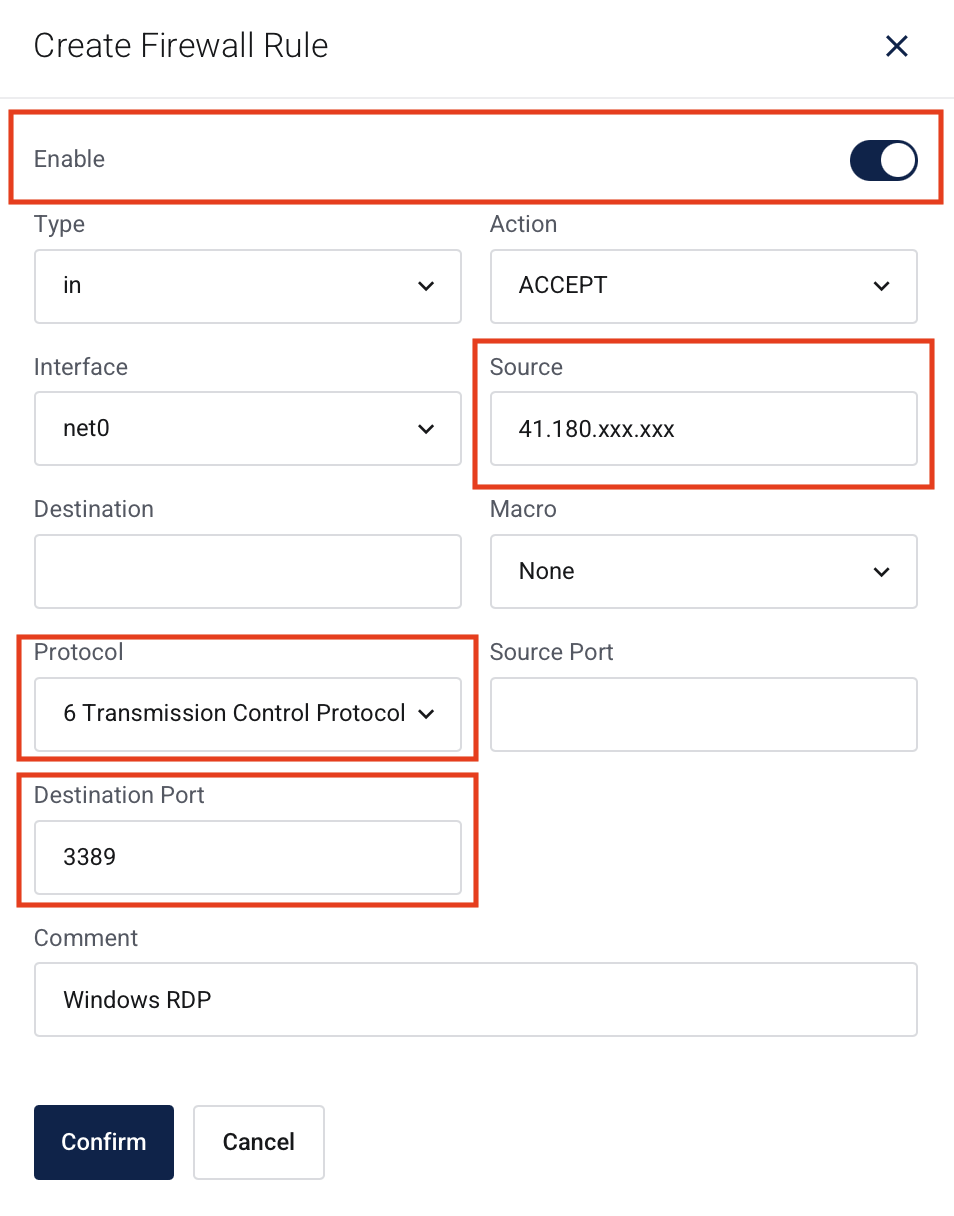
RDP Firewall Rule
- Enable the Firewall by toggling the switch "On"
- Enter your "Source" IP address. This is the public IP address you are establishing the connecting from
- Change the Protocol to "6 Transmission Control Protocol"
- Enter "3389" under the Destination Port
- Click "Confirm" to save the rule.
You can also view the below knowledge base article which will guide you further on the possibilities and capabilities of configuring your firewall
https://my.metrofilecloud.com/knowledgebase/4/Configuring-your-VPS-Firewall..html
If issues persist, please open a support ticket and our team will assist you.