


Applies To: Linux & Windows VPS Hosting
Snapshots allow you to capture the exact state of your virtual server at a point in time. This includes the memory, disk, and system state — making it ideal for quick rollbacks when performing system updates, application installs, or configuration changes.
This guide explains how to take a snapshot using the built-in Snapshot tool accessible via your client area, and how snapshots differ from backups.
Snapshot vs Backup: What's the Difference?
| Feature | Snapshot | Backup |
|---|---|---|
| Purpose | Instant restore point for testing or changes | Full system restore in case of major issues |
| Storage | Stored on the same disk as your VM | Stored separately |
| Speed | Very fast to create and revert | Slower, as it involves full image export |
| Persistence | Temporary (not ideal for long-term) | Long-term, can retain multiple restore points |
| Recommended for | Quick rollbacks (before updates, scripts) | Disaster recovery, compliance, scheduled backups |
Note: Snapshots are best used for short-term rollback purposes. For long-term protection, always rely on the built in backups, or make use of our external Advanced Backups.
How to Take a Snapshot:
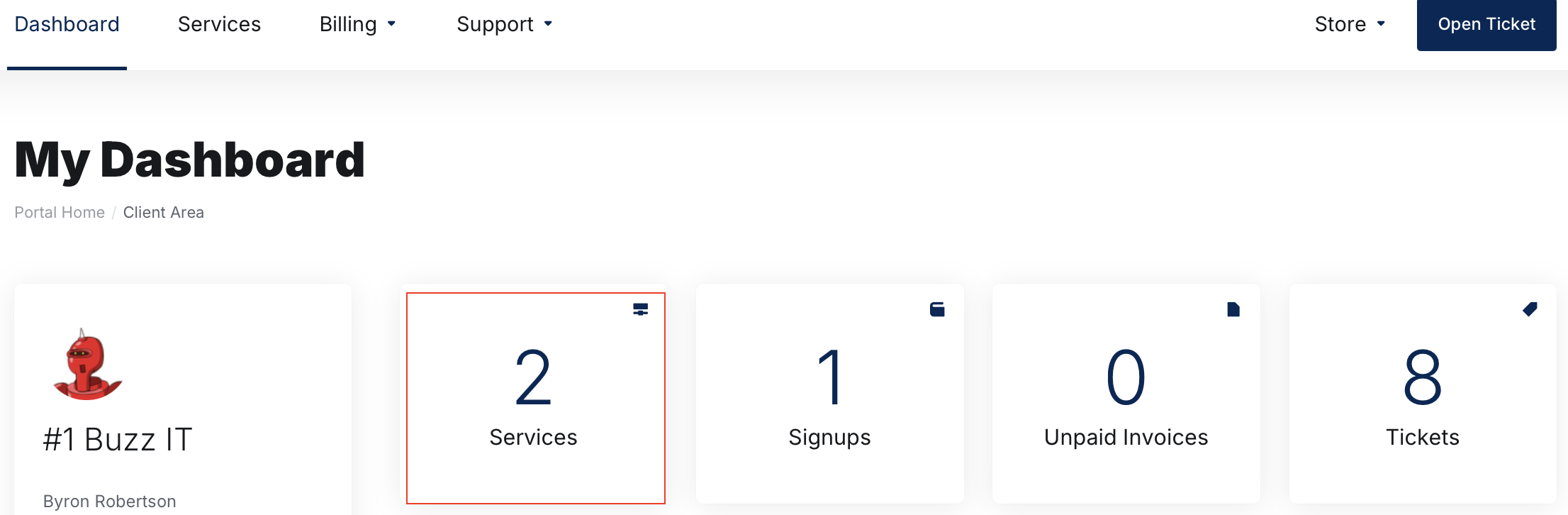
Access Your Services
-
Click on Services
-
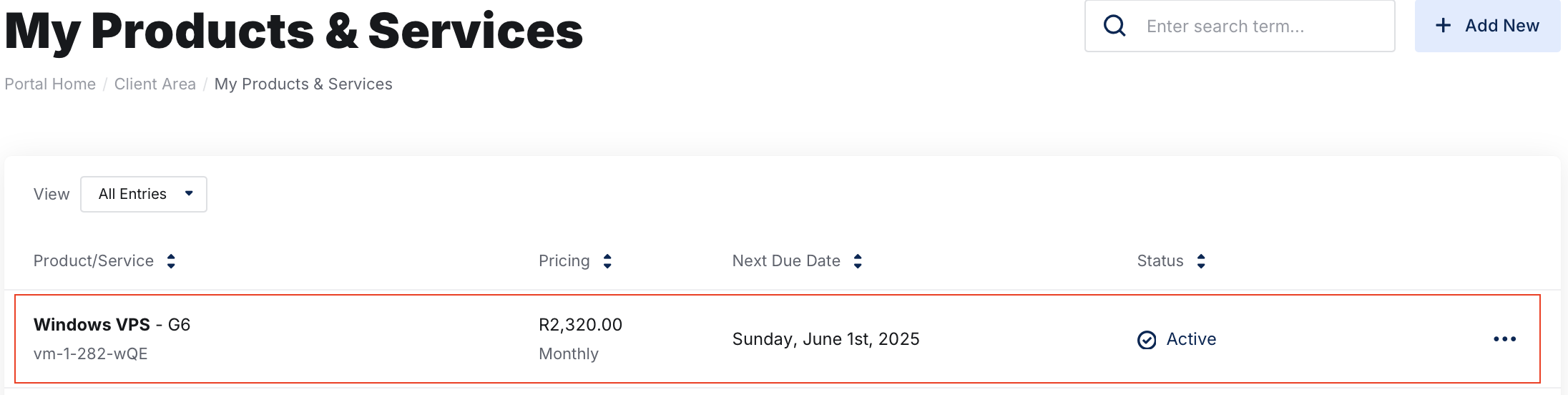
Select the VPS you want to manage by clicking on it.
Open the Snapshots Section
-
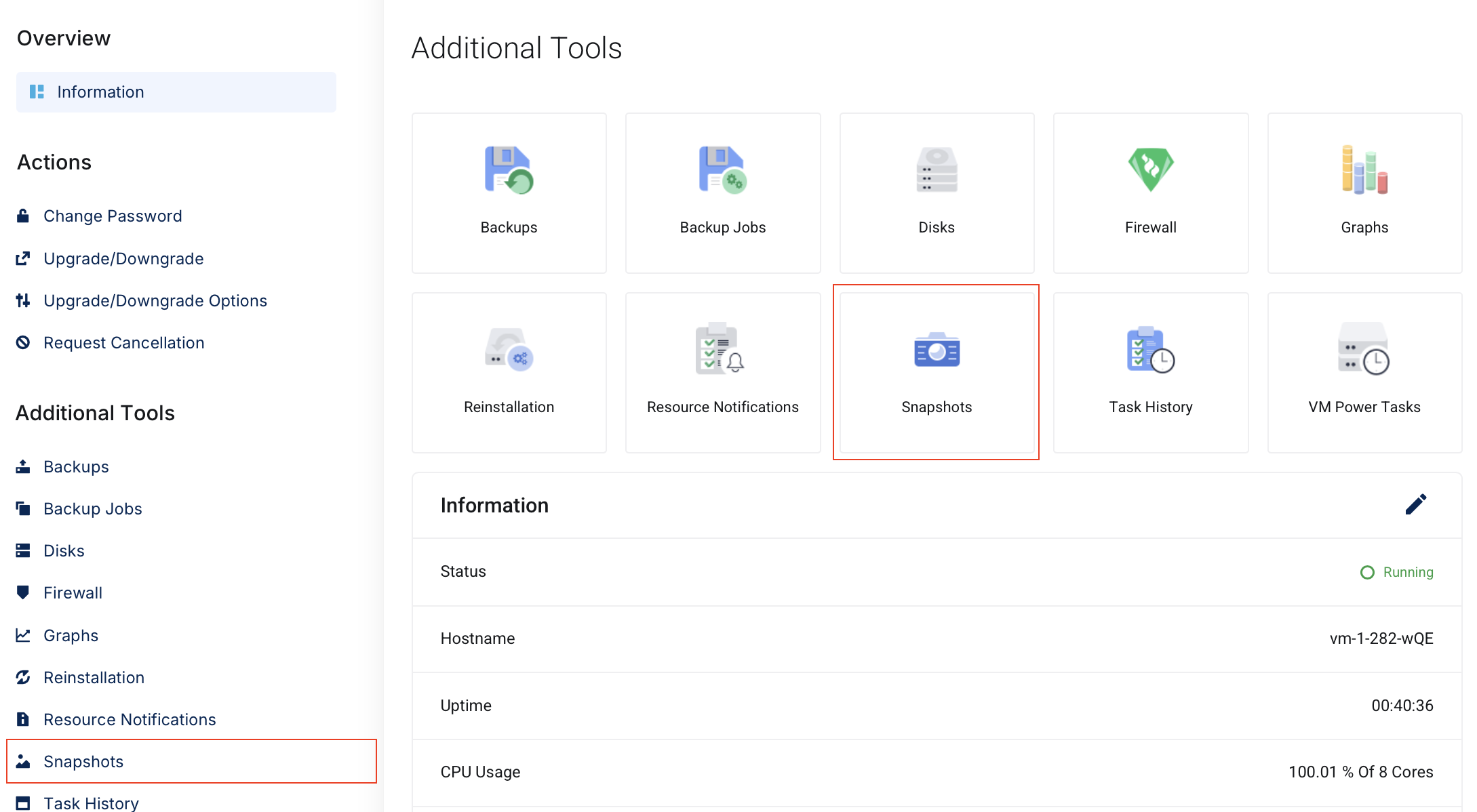
On the product details page, scroll down to find the Additional Tools > Snapshots on the left column or click on the Snapshots tile.
-
Click on Snapshots
You will now be taken to the Snapshots section where we can perform a snapshot.
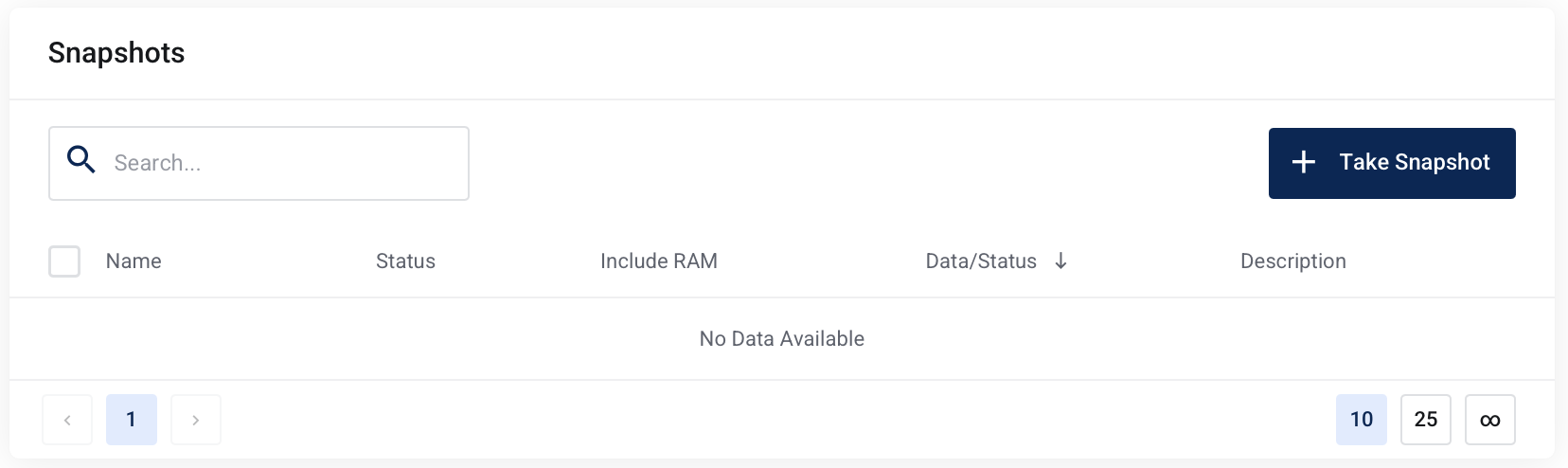
- Click on + Take Snapshot
This will open up a new window which will allow you to configure some parameters for the Snapshot.
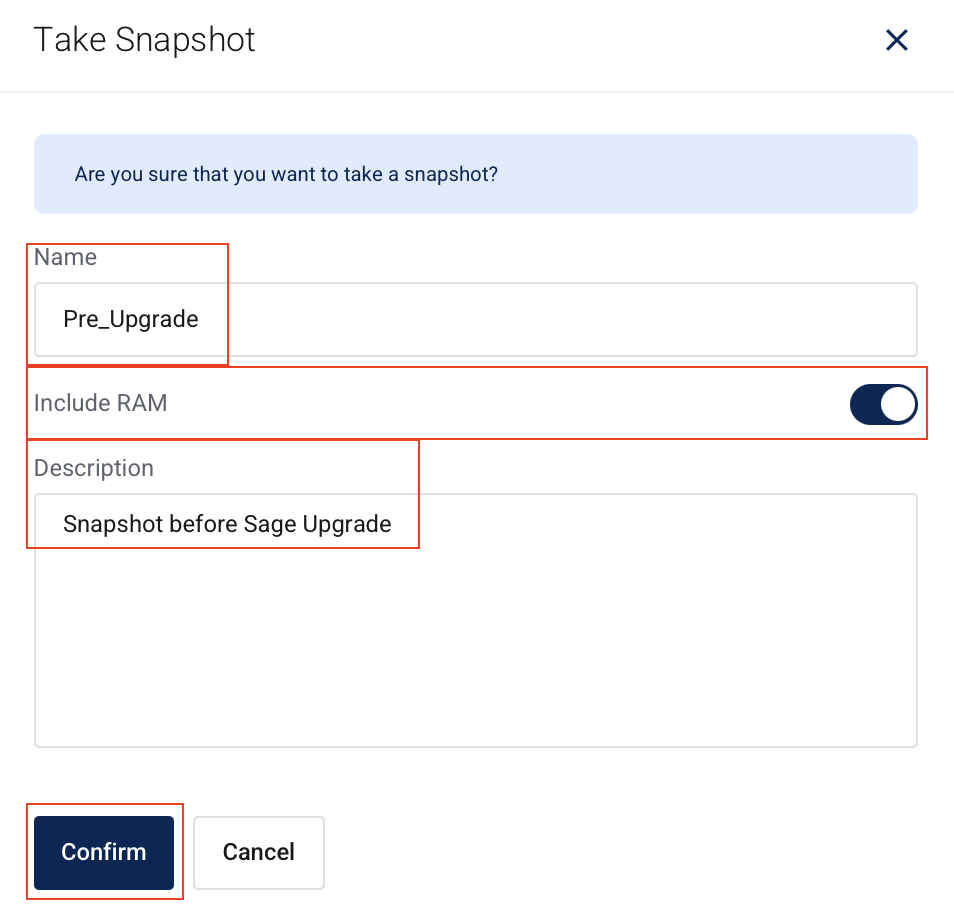
- Name the snapshot NB - Spaces are no accepted in the snapshot name
- Toggle on Include RAM
- Add a description
- To confirm and run the snapshot, click Confirm
You will get a success popup telling you the snapshot has been created successfully.

You can now see your Snapshot listed in the Snapshot windows.
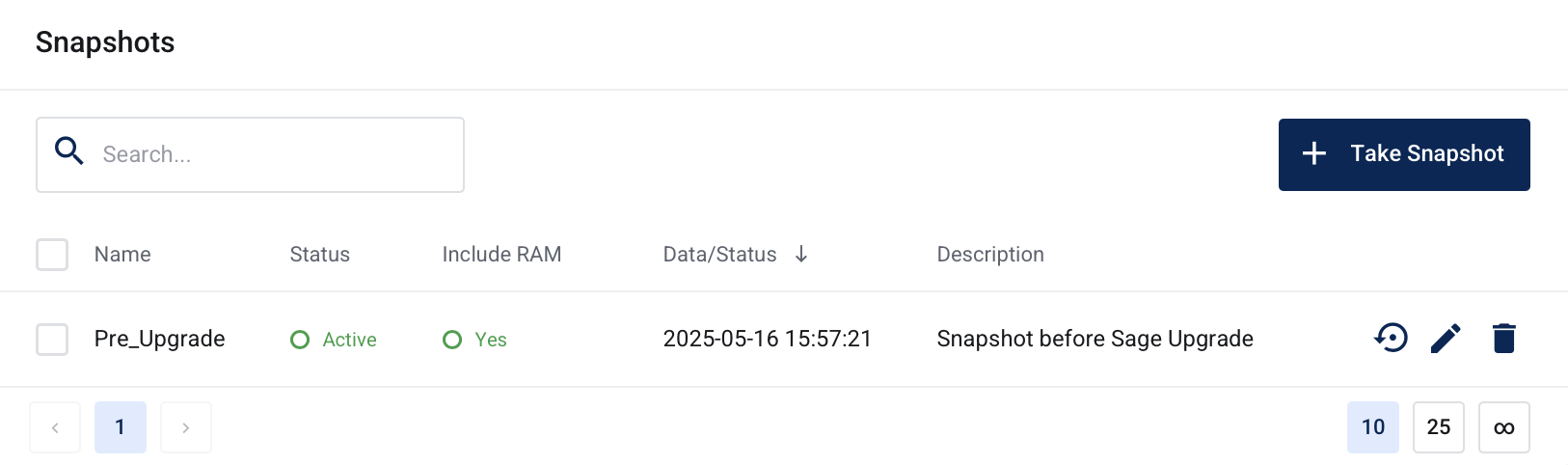
Various options exist now for this snapshot including.
- Rollback - This will recover your server to this point in time. Any work carried out after this Snapshots point in time will be lost.
- Update - Allows you to adjust the description
- Delete - Removes the selected snapshot
Typically you would now continue your upgrades or adjustments on your server, knowing that you have a snapshot to roll back on.