


Applies To: Linux & Windows VPS Hosting
Backups provide a complete copy of your virtual server — including files, applications, system settings, and configurations — that you can use to restore your server in the event of data loss, misconfiguration, or other failures.
This article explains how to manually create a backup of your VPS using the built-in backup feature accessible via your client area.
| Feature | Backup | Snapshot |
|---|---|---|
| Scope | Full disk-level image of your server | Point-in-time state (memory + disk metadata) |
| Storage | Stored on external backup storage | Stored on the local disk of your VM |
| Use Case | Disaster recovery, file corruption, wipe | Testing, software installs, short-term rollback |
| Persistence | Long-term retention | Temporary (typically short-lived) |
| Performance | Slower to create | Instant or near-instant |
Use snapshots for temporary rollbacks and backups for long-term protection.
Access Your Services
-
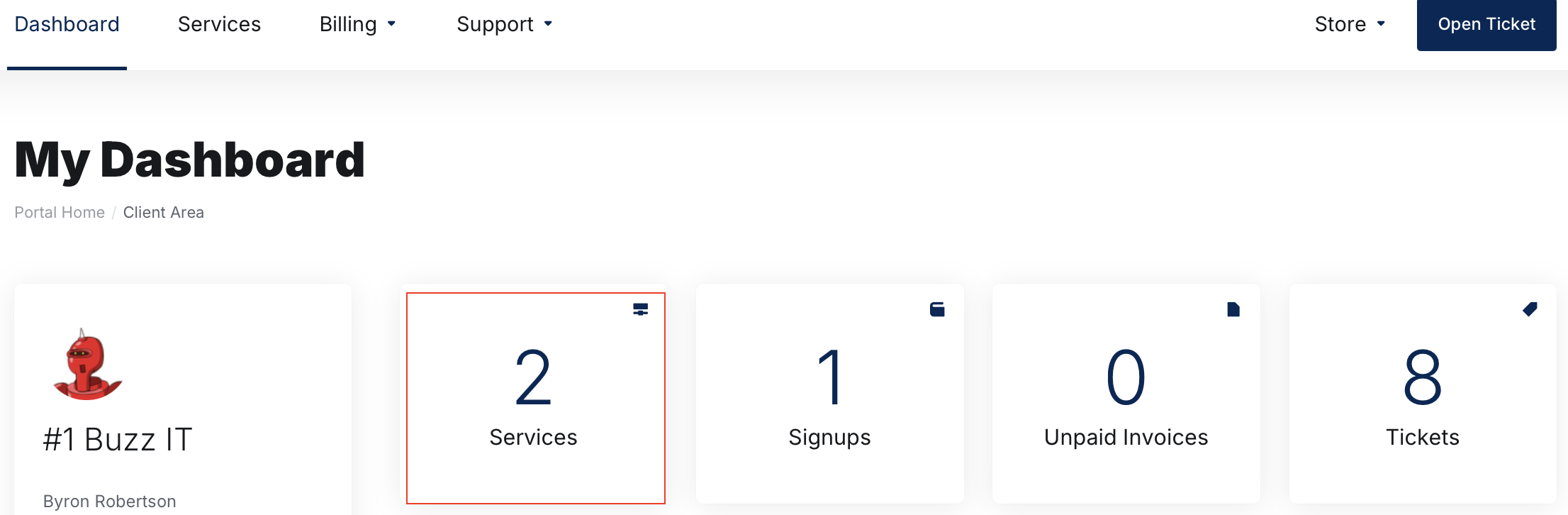
Click on Services
-
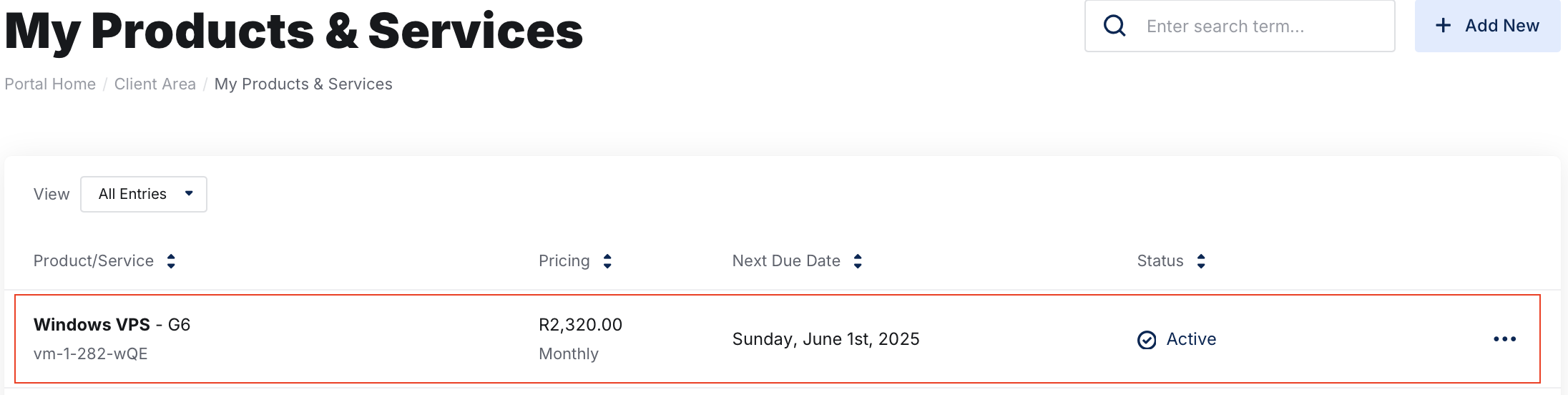
Select the VPS you want to manage by clicking on it.
Open the Backups Section
Navigate to Backups under Additional Tools
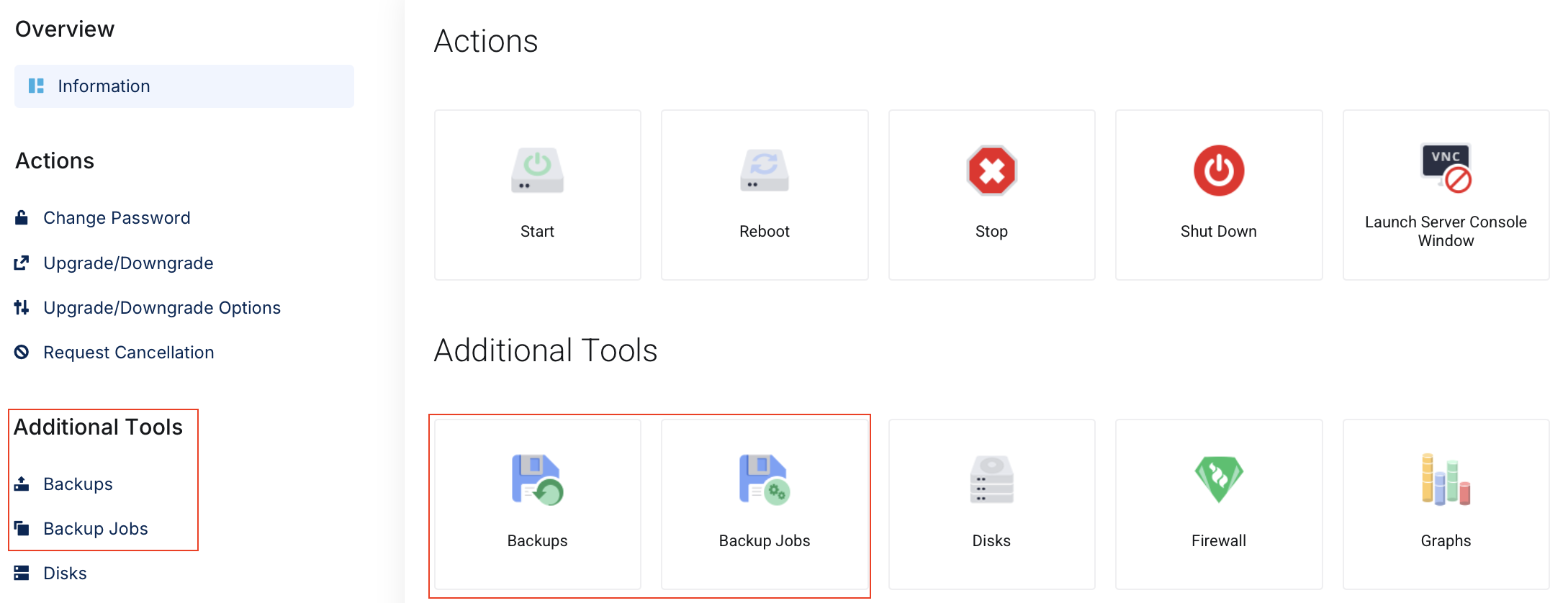
Selecting Backups will take you to the Backup configuration area where we can take a manual backup.
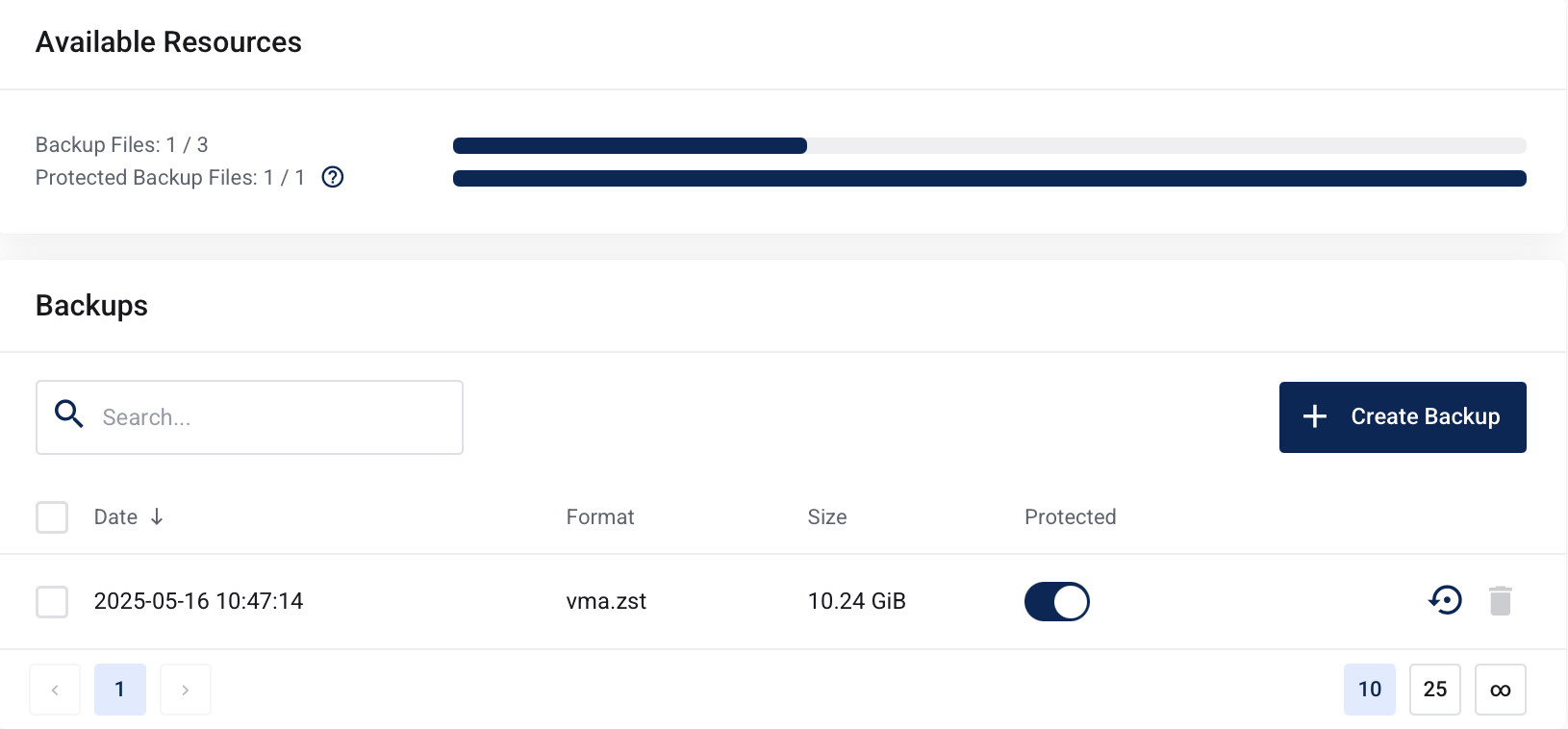
To take a backup, you need to click on + Create Backup. This will open up a window with some configuration. It is safe to leave these as standard. ZSTD(fast and good) for the compression and Snapshot for the mode.
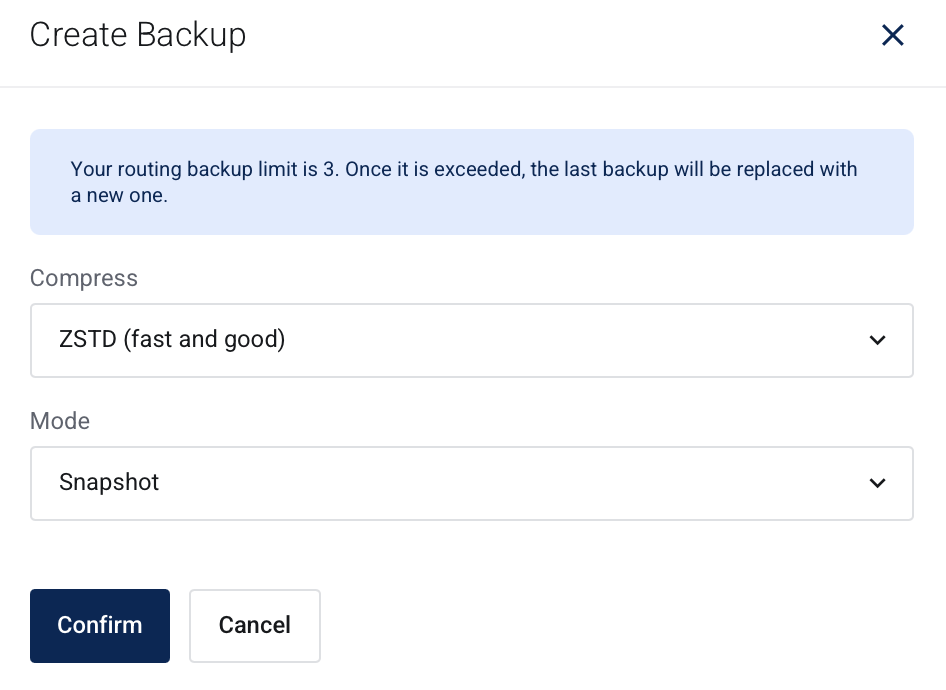
Click on Confirm to take a backup.
A small window will confirm that the backup is now taking place

Once the backup has completed, it will appear in the list of backups as below.
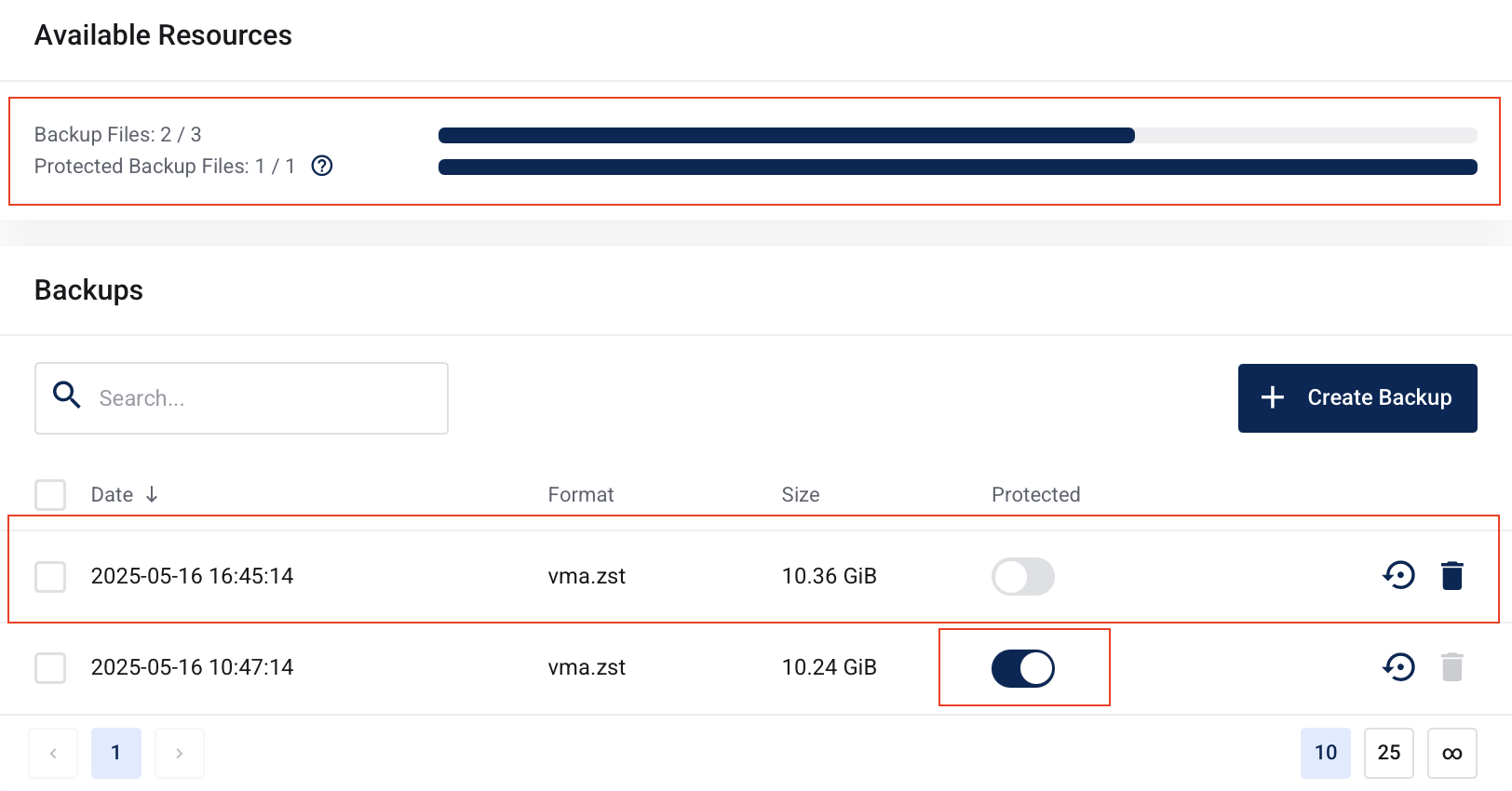
You will now see that a backup slot, which is included in your server config has been consumed. "Backup Files: 2/3" this means I have one more backup slot left before the backups start rolling over the oldest ones.
To avoid removal of an important backup, you have the option of protecting a backup. Toggle the Protected switch to protect this version of the backup from being removed by the rolling backups, or accidental deletion.
Backups marked as protected will not be deleted. This refers to new backups, scheduled backups (where only the oldest non-protected backup is replaced), and backups older than 0 day (s), which will still be kept if marked as protected. Note: backup protected summary depends on the backups configuration and may vary by product.