


Applies To: Linux & Windows VPS Hosting
If you've taken a snapshot of your server, you can quickly roll back to that saved state at any time. This is especially useful if you've made a change (such as a system update, software install, or misconfiguration) that caused issues.
This guide walks you through restoring your virtual machine (VM) from a previously created snapshot using the client portal.
Important Considerations
-
Restoring a snapshot will revert your server to the exact state it was in when the snapshot was taken — this includes disk, memory (if enabled), and configurations.
-
Any changes made after the snapshot was taken will be lost.
-
Snapshot rollback is instant, but cannot be undone.
Access Your Services
-
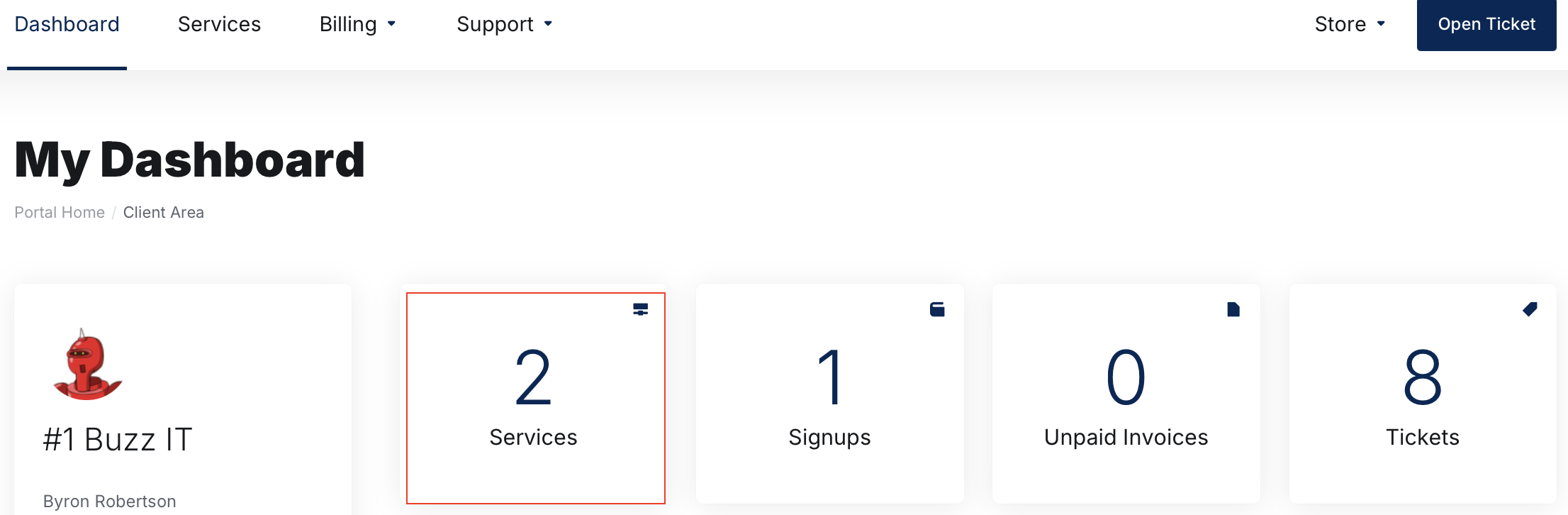
Click on Services
-
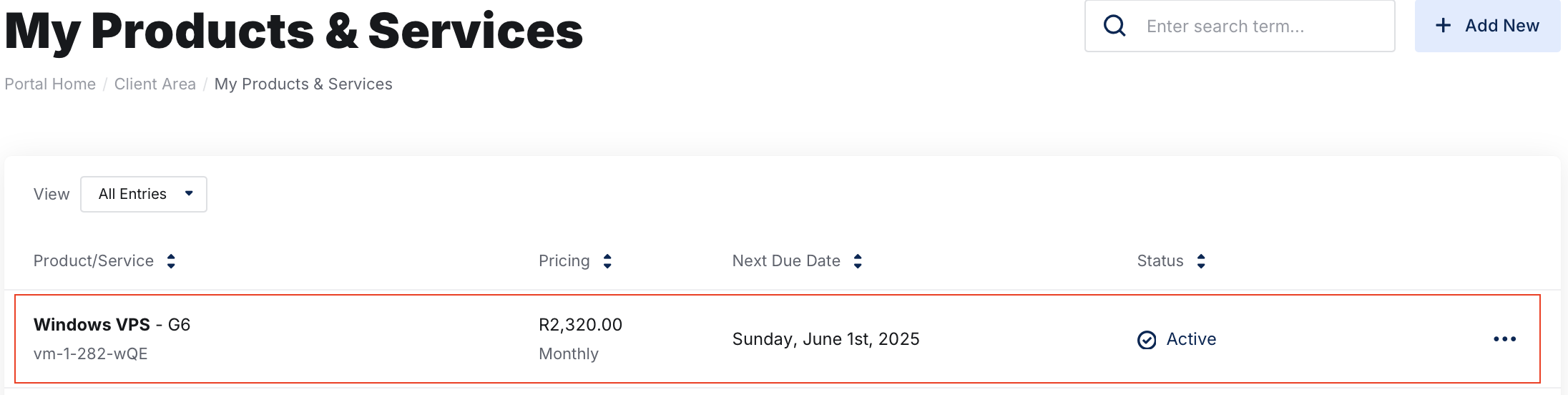
Select the VPS you want to manage by clicking on it.
Open the Snapshots Section
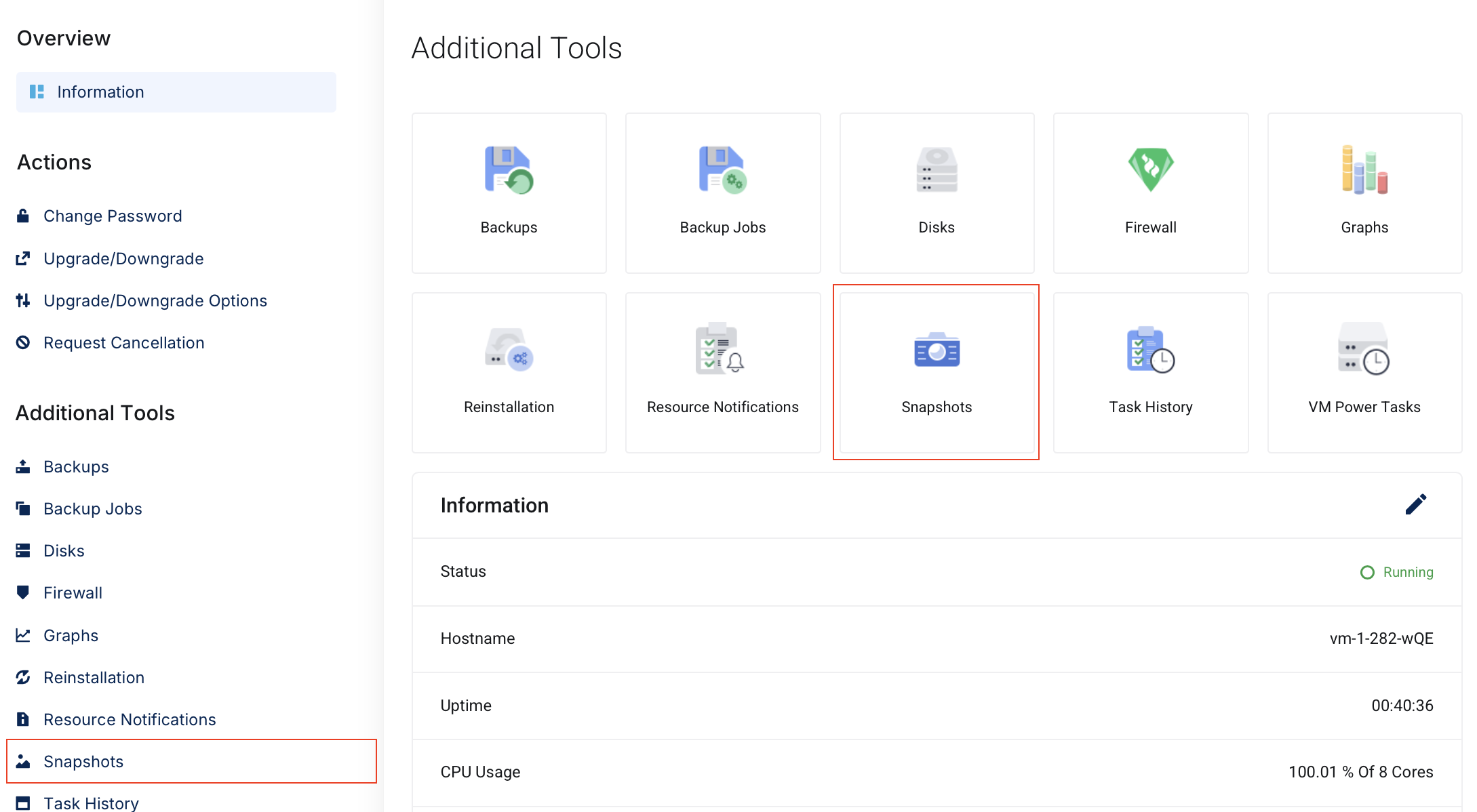
On the product details page, scroll down to find the Additional Tools > Snapshots on the left column or click on the Snapshots tile.
-
Click on Snapshots
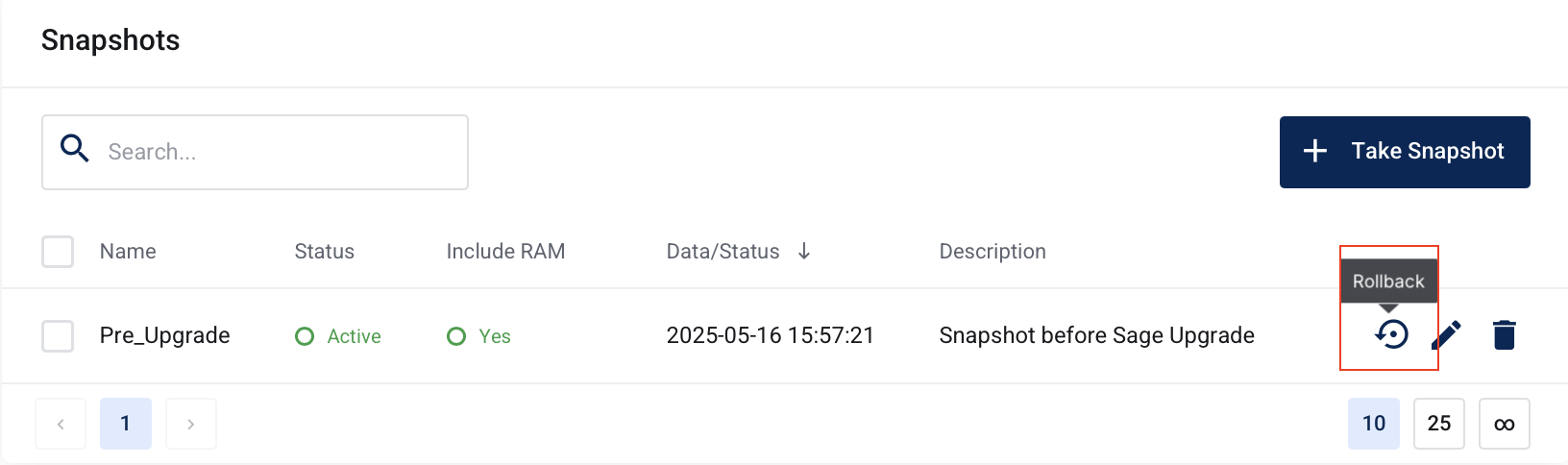
You will now see a list of any available snapshot you have for your VM.
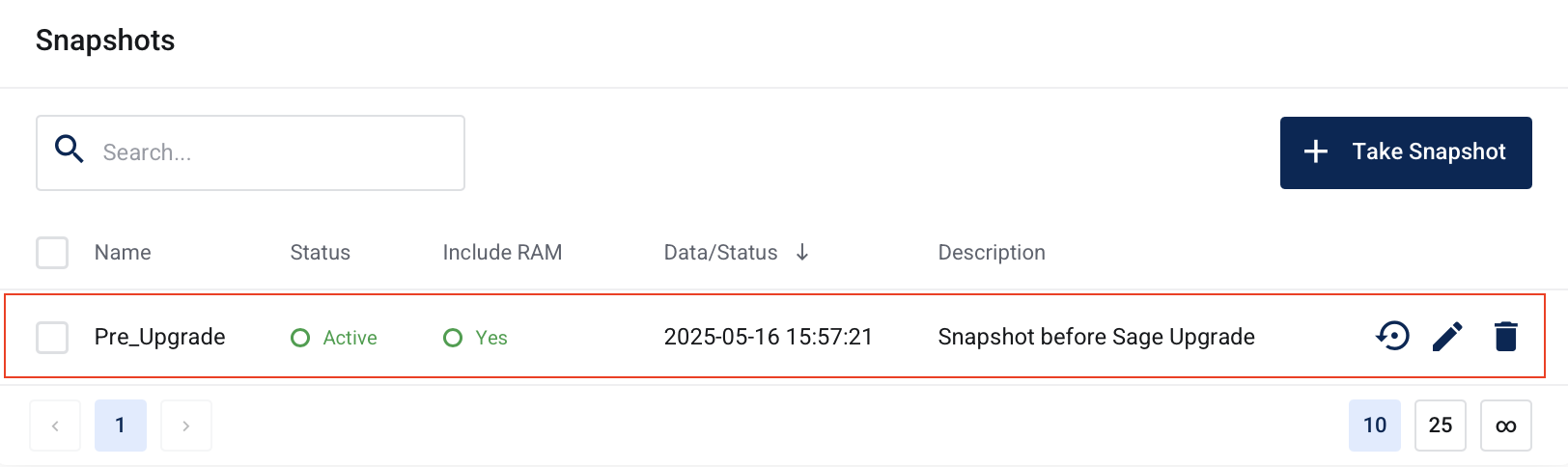
Once you have identified your snapshot or rollback point, click on the rollback icon as illustrated below.
A popup will appear asking you to confirm your decision. Click on Confirm if you are happy to proceed.
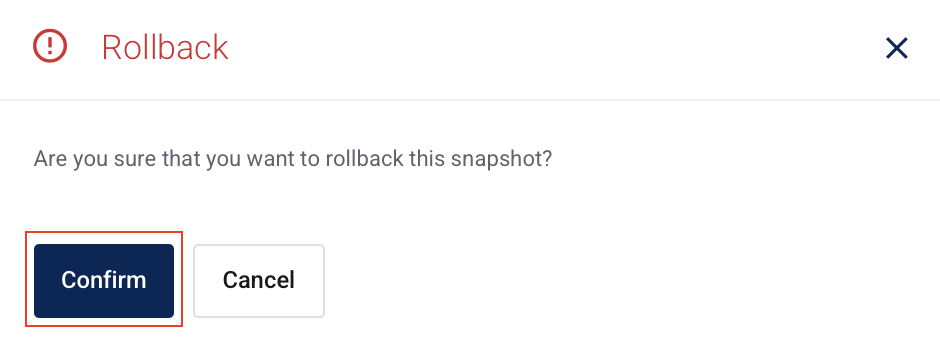
You server will now be rolled back to the point in time the snapshot was created.